Total Pageviews

Sunday, 31 January 2021

Practical Set of Microsoft Windows Server 2008 R2 in Hindi & English

Please have a look at my new book written by me. It is in Hindi and  as well as in English.


 The link is given below or Click Here


Thursday, 1 March 2018

How to Set Password on MS. Outlook Profile.

Friends as you know that security is the most important things for us.
People use Outlook for easy their work. People want to secure their data , so without waste our time lets learn "how to set the password on Outlook". So lets start......

1. Open Control Panel for it press "Windows + R"  and type "Control" then OK.


2.Now click on Mail (32-bit)..


3. Then click on show profile..


4.Now select your profile then click on Properties...


5. Now click on Data File...


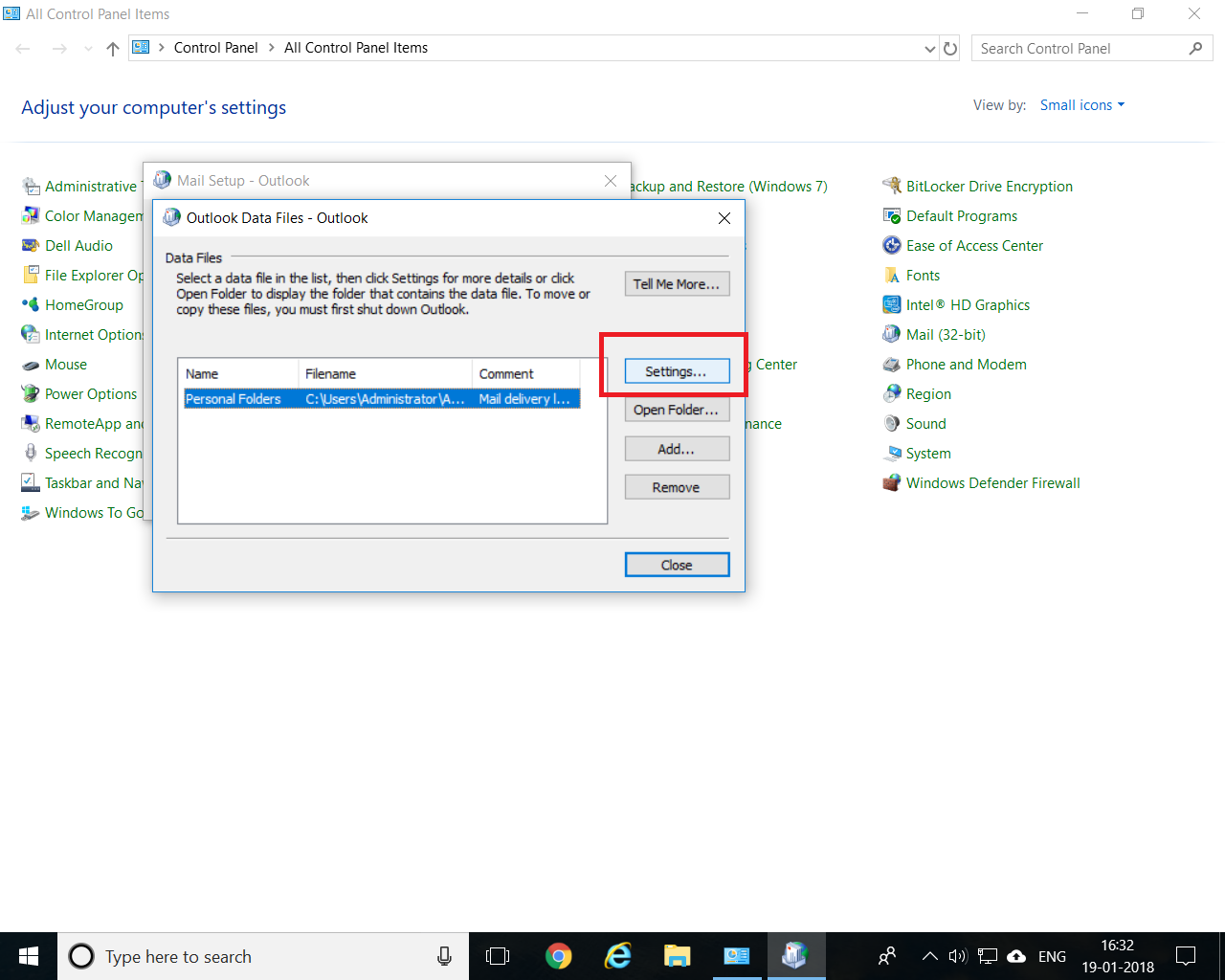
6.Now click on the Setting options.


7. Now click on Change Password.


8.Now keep blank the old password box (if you are setting the password on outlook first time and if you are going to change your outlook password then type here your old password) then click in the new password the verify it then click OK.And close the all Tabs..


9.Now just open the outlook , you can see it is asking for password.


Now you have successfully set the password on outlook.
Hope you like this post, Thanks for visiting here .


Thursday, 18 January 2018

How to reset or configure Lifesize Video Conferencing Machine.

Hi Friends ......
             As you know that in these days VC  (Video Conferencing ) is the very useful machine for make an effective conversation , save travelling time , connecting people and sharing your ideas and presentation etc. And most of the company use this machine.In every company VC is the common things. Some time we forget the password of VC (Video Conferencing Machine ) and we have to do some changes in the settings , And if we have been forgot the password and we have to do some changes then we'll have to reset it.
                                             

Note :- 1. If you are going to reset VC then you must note all the configurations details or you can                      take Snapshots on your phone it'll help you to again configuring it.
             2. You can see all configuration details just pressing on Menu button which is shown in this pic
                                         

3. Note All the contacts (Directories) by just clicking on the Directory Button which is in this pic


So lets start to reset.......
             

1.      Press Reset Button for 30 Seconds.....
                                     

2. Now wait few minutes this screen will be open.....


3.Now Choose your Language. & Click on next


4.Now Set the Administrator & User Password and click on OK and Next.


5.Now Select your Country & Time then Next.


6.Now Set IP Address & Next...


7.Now Set details & Next....


8. Now you have successfully  configured the VC...
                 

Hope you like this post.
Thanks for visiting here.

Tuesday, 21 November 2017

Unable to open a .pptx (PowerPoint) file which received from mail

Dear Friends.
      Before some days my friend sent me a .pptx file,  means Microsoft PowerPoint file by mail. when I was trying to open this file, it was asking for repair, but after repairing MS PowerPoint problem did not resolved.I repair lots of time but problem didn't resolved.After doing R&D I got the solution of this problem.So Now I am going to tell you how to solve this problem in 2 Seconds.
 
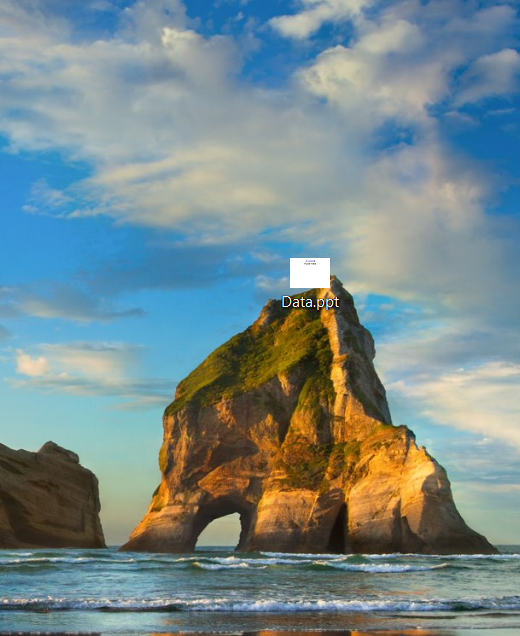
1.When I was trying to open .pptx file it was showing like this.


2.For fix this problem Right Click on the .pptx File and click on the Properties options.


3.Now select Unblock options.


4.Then click OK. Now try to open that file


5.Now try to open that file.


6.You will see that now you are able to see that file.


Hope you like this post. Click on the follow button so that you could receive all new my post.
You can also subscribe my blog by putting you mail id in Follow by Email Option, after putting your mail id & Submitting , you will received a mail on your Email. from clicking on that you can subscribe my blog , you can also suggest your friends from this option to subscribe this blog.

Thanks for Visiting Here

Monday, 2 October 2017

Check UP Board Result of All years (2000 to 2016)

For check previous years Results  (2000 to 2016) of UP Board High School & Intermediate  Click Here
          or Visit http://upmspresults.up.nic.in/HSSearch.aspx  
Thanks for Visiting Here

Sunday, 1 October 2017

How to Share Internet Connection by Using Bridging Method

Dear Friends...
                    Today I am going to tell you that how to share Internet Connection by Using Bridging Method.

Advantage of Bridging :-
                               Suppose you use Internet in your PC by Mobile data or Data Card etc. And you want to share Internet so that you could use Internet in more PCs or Mobiles at the same time. Then you can use this method.
       Friends for use this method ,  you need 2 source for Access/Share Internet. One for access Internet & 2nd for share Internet.
  • For Access Internet you can use :- Mobile Internet , Data Card , Dongle , Wi-fi , LAN Cable etc.
  • For Share Internet you can Use :- Switch or Wi-Fi Router(ADSL Router)  
                  Suppose I have Air-tel 4G Dongle and I want to use Internet more than 2 Computers at the same time. And I want to share Internet Using ADSL Router or Switch. So first I will have to Connect Dongle with my PC & then I connect ADSL Router or Switch with my PC so that I could share Internet.
           Now I have Connected Both Lets Check.
           1.type "ncpa.cpl" in run Command & press enter button.


2.Now you can see it is showing two Connection 1st Enternet 1 that is Connect with ADSL Router/Switch & 2nd Ethernet 2 ( Airtel 4G ).


3.Now open Command prompt & type "ipconfig /all" Now note that Both Connections IP Address.


4. its Ethernet 2 means Airtel dongles IP note IP address. For Fill it Manual IP in Both Connections.


5.Now Put the Manually IP address in Ethernet 1.


6.Now Put the IP address of 2nd Ethernet in 2nd Ethernet and Ok  & Close it.


7.Now again type "ncpa.cpl" in Run Command.


8. Salect Both and then Right Click.


9.Click at Bridge Connection.


10.Now you can see you have successfully Shared the Internet Connection using Bridging method.


11.Now if were using Switch then just you can share Internet by LAN Cables and if you were using ADSL Router for share Internet then you share Internet by Wi-Fi.


Hope you like this Post.So Please don't forget to follow , like & Share.
Thanks for Visiting Here.


How to Configure Airtel/Jio Wifi Dongle/Router.

Dear Friends.
          This time lots of people have 4G wi-fi dongle. Some time we forgot the password of wi-fi dongle , or we want to change our wi-fi dongle's SSID & Password.So  I am going to tell you how you can configure Wi-fi dongle in few seconds.So lets start......

1. Connect your Dongle with PC by Micro USB Cable.


2.Now Just Click on your Computer Icon , Now you can see here is showing your Dongle setup.Open it.


3.Now Install this setup by just Double click on auto-run file.


4.After Installing this Setup . You Can see it on your Desktop.


5.Now open Command Prompt.you can also open it by just typing CMD in run command.


6.Now type "ipconfig" in command prompt & press Enter button.


7.Now just check Default gateway IP. & open Internet Explorer.


8.Type Default gateway IP in internet Explorer & Press Enter Button.


9.Now it will ask for password & username. Default Username is :- "admin" , & Password is also "admin", in some types of dongle or routers default password is :- "password".


10.Now just click on Setting option.


11.Now click at Wi-Fi settings.


 12.From here you can see your wi-fi SSID & Password.You can also change your wi-fi dongle password &


Hope you like this post.Don't forget to follow , like & share this post.
Thanks for Visiting here.